Category Archives: blog

Users prevail: Microsoft changes Windows 7 UAC control panel behavior to address security flaw

windows7uac

It seemed only hours ago Microsoft stood by their decision not to change the UAC control panel behavior in Windows insisting it was “by design”. Oh wait, it was only hours ago. Nevertheless, three hours and numerous comments later, Microsoft reversed their decision for the better of all Windows 7 users. The Engineering 7 blog writes,

…we are going to deliver two changes to the Release Candidate that we’ll all see. First, the UAC control panel will run in a high integrity process, which requires elevation. That was already in the works before this discussion and doing this prevents all the mechanics around SendKeys and the like from working. Second, changing the level of the UAC will also prompt for confirmation.

The result is actually even slightly better than what I had hoped for. I originally proposed a secure confirmation to be displayed when the UAC level is changed, but Microsoft one-upped that proposal to also run the UAC control panel in high-integrity which means malicious applications cannot manipulate the user-interface of that window without first elevating itself.

All I want to say is thank you to everyone who took the time out to thoroughly understand the issue at hand and continued to spread the message in a constructive and meaningful manner. At the same time I also want to acknowledge everyone who may have disagreed with our opinions for also being constructive.

The day I posted my original article I had lost my ADSL internet connection, and still to this day it is down. So Microsoft, if you disconnected my internet, I’d like to have it back now please. 😛

Update: I’d also like to reiterate, until the RC build of Windows 7 is available, everyone using the Windows 7 Beta should change their UAC setting to “max” to ensure they are safe from either UAC vulnerabilities.

Win a free Windows 7 shirt (Australian residents only)

windows7shirtIf the Zune guy has taught us anything it’s that you should never mutilate your skin to show your love for a product, which is why a shirt is exponentially better. Thanks to Microsoft Australia, I was recently offered forty (40) of these limited-edition Windows 7 shirts, but since one can only wear so many at a time, I’m passing the freebies onto (some of) you, the wider Australian enthusiast community.

Sorry, Australian residents only. Usually I don’t limit my giveaways to geographical barriers but because Microsoft Australia is helping me with the logistics (and I thank them for it), this is a necessary limitation.

To enter, first sign up for a Twitter account if you don’t already have one. Then tweet what you like most about Windows 7 with the hash tag #win7shirtau. For example, “Problem steps recorder in Windows 7 rocks #win7shirtau”. Finally befriend me, “longzheng“, on Twitter so I can direct message you if you win. I promise I won’t spam you Viagra (unless the economy gets really tough).

To keep the competition fair, winners will be still chosen at random and multiple submissions by one user is counted only once, but creativity is encouraged. Competition closes on Friday, 13th of February 2009 and winners will be notified on Twitter via direct messages (also email notifications by default). Anyone found using multiple Twitter accounts or not in Australia will automatically be disqualified.

Besides the obvious fact it is “new and shiny”, Windows 7 comes with a lot of cool new features and improvements so I’m sure you’d have no problems thinking of one, if you have tried it that is. If you haven’t, it’s not too late either. You have until February 10 to register for the free public beta and February 12 to download it. Head over to the TechNet Australia’s Windows 7 Beta site for more information.

I have noticed these shirts have four holes on them, but I’ve been assured by the manufacturer it is by design. 😛

Update: The winners have been selected and notified. If you didn’t win one, consider printing your own.

Second Windows 7 beta UAC security flaw: malware can silently self-elevate with default UAC policy

UAC broken in Windows 7

Soon after writing my last blog post on the potential security vulnerability to autonomously disable Windows 7 beta’s UAC system, I had realized that flaw was just one piece in a string of dominoes that fell much earlier when the new tiered-UAC system was introduced in Windows 7.

In summary, a second UAC security flaw in the Windows 7 beta’s default security configuration allows a malicious application to autonomously elevate themselves to full administrative privileges without UAC prompts or turning UAC off. A result I’m sure cannot be classified as “by design”.

This public disclosure comes after a private disclosure to Microsoft and Windows 7 beta testers earlier this week. Whilst Microsoft has not officially responded, I’ve heard rumors it may already fixed in current internal builds. If and until a patch is available, I feel obliged to outline the elevated risk (pun) to the millions of Windows 7 beta user running Windows 7 beta in its default UAC policy of “notify me of changes by program, not of Windows changes” which does not adequately enforce the privilege system, arguably an essential factor to a safe operating system.

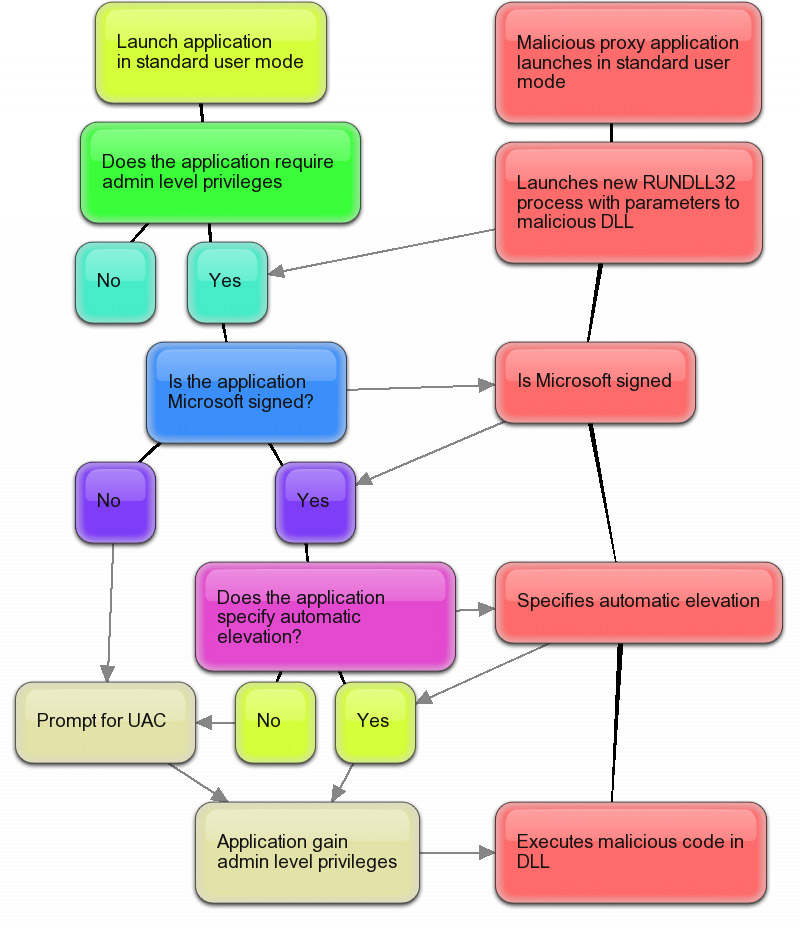
Windows 7 UAC flowchartWithout going into too much detail, as you already may know from the previous postings, Windows 7 has the ability automatically elevates Microsoft-signed applications and code which specifies “auto elevation” to mitigate the number of UAC prompts. Rafael Rivera has more details how this works.

The fundamental risk with the above behavior is the fact that Windows is a platform that welcomes third-party code with open arms. A handful of these Microsoft-signed applications can also execute third-party code for various legitimate purposes. Since there is an inherent trust on everything Microsoft-signed, by design, the chain of trust inadvertently flows onto other third-party code as well. A phenomenon I’ve started calling “piggybacking”.

To demonstrate, one of the many Microsoft-signed applications that can be taken advantage of is “RUNDLL32.exe”. With a simple “proxy” executable that does nothing more than launch an elevated instance of “RUNDLL32” pointing to a malicious payload DLL, the code inside that DLL now inherits the administrative privileges from its parent process “RUNDLL32” without ever prompting for UAC or turning it off.

For more technical details about this and a downloadable proof of concept, head over to Rafael’s site where he has prepared a non-malicious informational executable and DLL rolled into one neat package to try for yourself at home.

Unfortunately this flaw is not just a single point of failure. The breadth of Windows executables is just too many and too diverse, and many are exploitable. The only solution I can think of is also one I don’t think Microsoft will even consider, that is to revert to a single UAC policy and prompt for every elevation including Windows’ own applications. I’m curious how this will play out.

Important: The advice to every Windows 7 beta user is to set your UAC setting to “high”. This will make sure granting privileges are only in the control of your own mouse clicks and should prevent a malicious application from exploiting this and the previous flaw. Again, the balance between usability and security comes under the spotlight.

In Microsoft’s defense, some people have also argued UAC is not a “security boundary”, a vague term in my books. I argue because UAC is designed to enforce privileges (processes cannot jump to any privilege they want) and control privileges (prompts for privilege changes) it is a security feature. If a security feature can be maliciously and silently bypassed or turned off, I would consider that a security flaw.

Finally, to clarify my perspective on the whole issue, Windows 7 is a great operating system and these UAC issues are just two particular cases in a very small list of notable issues. I disagree with how Microsoft had handled the original issue but I’m sure with the wider public feedback it received we will end up with a more secure operating system as a result. In no part am I trying to “derail” Windows 7’s success run, but ensuring the default security policy is adequately safe for current and future users.

Update: As it turns out, Microsoft had known of this Windows 7 UAC auto-elevation flaw all the back in November of 2008. “For Beta, Windows components that can execute arbitrary code and or apps (eg CMD, CSCRIPT, WSCRIPT, PowerShell, etc) are prevented from auto-elevating.” I guess they overlooked things then.

Update 2: Microsoft’s Jon DeVaan has posted a response on the official Windows 7 blog with an extensive look at the UAC system in Windows 7 and their decision on the default security policy. In conclusion, they continue to stand by their decision and does not indicate they will change the default UAC policy.

Microsoft dismisses Windows 7 UAC security flaw, continues to insist it is “by design”

Update 3: Microsoft has since addressed this problem by correcting the problem. In the more final builds of Windows 7, the UAC control panel will require elevation to change its options.

uacbrokenwindows7

I’m not too sure if Microsoft is on the same page as I am, but a Microsoft spokesperson has emailed me in response to the Windows 7 UAC security flaw I wrote about and demonstrated yesterday. In summary, Microsoft claims this is “not a vulnerability”, is intended behavior and again indicates will not be changed. No, your eyes are not playing tricks on you. They’re (again) indicating it will not be fixed in the final version of Windows 7.

  • This is not a vulnerability. The intent of the default configuration of UAC is that users don’t get prompted when making changes to Windows settings. This includes changing the UAC prompting level.
  • Microsoft has received a great deal of usability feedback on UAC prompting behavior in UAC, and has made changes in accordance with user feedback.
  • UAC is a feature designed to enable users to run software at user (non-admin) rights, something we refer to as Standard User. Running software as standard user improves security reduces TCO.
  • The only way this could be changed without the user’s knowledge is by malicious code already running on the box.
  • In order for malicious code to have gotten on to the box, something else has already been breached (or the user has explicitly consented)

The whole reason why I had made the “issue” public yesterday was because private Windows 7 beta-testers were frustrated at how Microsoft treated their concerns, but it seems like it hasn’t changed.

What I do not understand is how they are treating the seriousness of this problem. The proof-of-concept VBScript Rafael and I had come up with was intentionally as obvious as possible. A malicious application could be much more silent and visually discreet, plus add in additional code to load even more malicious applications after a reboot then running with full administrative privileges.

Microsoft’s argument is entirely based on the user, which I agree to an extent – they have to download and execute such an application, but remembering this can be a low-privileged application so it would have no warnings what so ever.

How could a low-privileged application be able to turn off the entire privileged-applications security-layer not be a security flaw? Let me repeat, a low-privileged application, some people seems to have missed that. I just don’t get it.

In contrast, if they implemented a solution as I have suggested, even if a low-privileged application (without UAC prompts) tried to turn off UAC, there is a last line of defense just before UAC is turned off to give the user a second chance. One more chance than no chance at all.

Update: A reader has kindly asked me to highlight a particular condition for this to work, the user must be in the “Administrative” user group, and not in the “Standard” user group where they will be prompted for a administrative password. In defense of the seriousness of the issue, the Vista and Windows 7 default user group is “Administrative” and I’m sure that’s what most home users are running.

Update 2: Microsoft’s Jon DeVaan has posted a response on the official Windows 7 blog with an extensive look at the UAC system in Windows 7 and their decision on the default security policy. In conclusion, they continue to stand by their decision and does not indicate they will change the default UAC policy.

Update 3: Microsoft has since addressed this problem by correcting the problem. In the more final builds of Windows 7, the UAC control panel will require elevation to change its options.

Sacrificing security for usability: UAC security flaw in Windows 7 beta (with proof of concept code)

uacbrokenwindows7

This is dedicated to every ignorant “tech journalist” who cried wolf about UAC in Windows Vista. A change to User Account Control (UAC) in Windows 7 (beta) to make it “less annoying” inadvertently clears the path for a simple but ingenius override that renders UAC disabled without user interaction. For the security conscious, a workaround is also provided at the end. First and foremost, I want to clear up two things.

First, I was originally going to blackmail Microsoft for a large ransom for the details of this flaw, but in these uncertain economic times, their ransom fund has probably been cut back so I’m just going to share this for free.

Secondly, the reason I’m blogging about this flaw is not because of its security implications – it is blatantly simple to fix – but Microsoft’s apparent ignorance towards the matter on their official Windows 7 beta feedback channel by noting the issue as “by design” and hinting it won’t be fixed in the retail version. A security-minded ‘whistleblower’ came forth to ask me if I could publicize this issue to maybe persuade them to change their mind. And that’s what I’m doing.

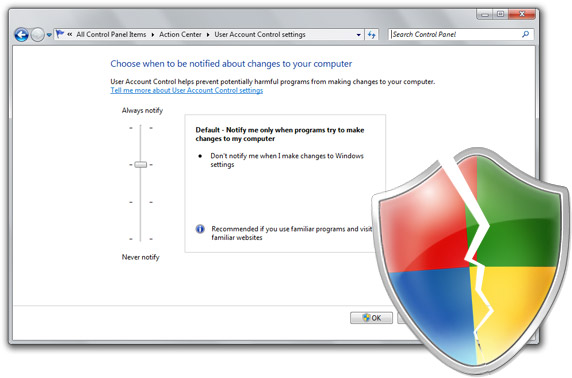
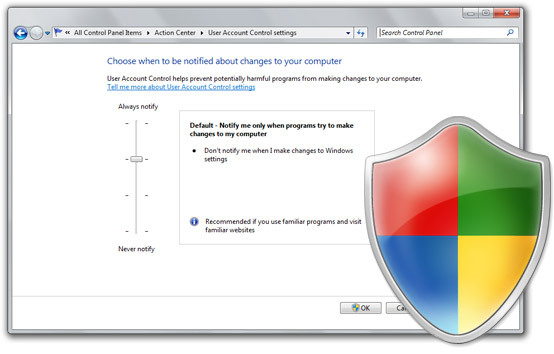
Now for a bit of background information on the changes to UAC in Windows 7. By default, Windows 7’s UAC setting is set to “Notify me only when programs try to make changes to my computer” and “Don’t notify me when I make changes to Windows settings”. How it distinguishes between a (third party) program and Windows settings is with a security certificate. The applications/applets which manage Windows settings are signed with a special Microsoft Windows 7 certificate. As such, control panel items are signed with this certificate so they don’t prompt UAC if you change any system settings.

nevernotifyThe Achilles’ heel of this system is that changing UAC is also considered a “change to Windows settings”, coupled with the new default UAC security level, would not prompt you if changed. Even to disable UAC entirely.

Of course it’s not a security vulnerability if you have to coerce the user into disabling UAC themselves (although sweet candy is exceptionally persuasive), I had to think “bad thoughts” to come up with a way to disable UAC without the user’s interaction. The solution was trivial, you could complete the whole process with just keyboard shortcuts so why not make an application that emulates a sequence of keyboard inputs.

With the help of my developer side-kick Rafael Rivera, we came up with a fully functional proof-of-concept in VBScript (would be just as easy in C++ EXE) to do that – emulate a few keyboard inputs – without prompting UAC. You can download and try it out for yourself here, but bear in mind it actually does disable UAC.

We soon realized the implications are even worse than originally thought. You could automate a restart after UAC has been changed, add a program to the user’s startup folder and because UAC is now off, run with full administrative privileges ready to wreak havoc.
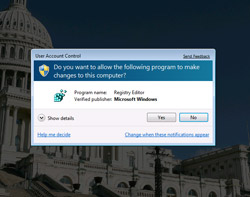
securedesktopuacThis is the part where one would usually demand a large sum of money but since I’m feeling generous, there is a simple fix to this problem Microsoft can implement without sacrificing any of the benefits the new UAC model provides, and that is to force a UAC prompt in Secure Desktop mode whenever UAC is changed, regardless of its current state. This is not a fool-proof solution (users can still inadvertently click “yes”) but a simple one I would encourage Microsoft to implement seeing how they’re on a tight deadline to ship this.

Having UAC on at the policy as it is currently implemented in Windows 7 is as good as not having it on at all.

Until when Microsoft decides to fix this, if they do at all, beta users of Windows 7 can also apply a simple fix. Changing the UAC policy to “Always Notify” will force Windows 7 to notify you even if UAC settings change. Annoying, but safe.

Update: I must credit Aubrey from WindowsConnected.com for also touching on this issue briefly today.

Update 2: Microsoft has officially responded to my concerns and continues to insist the functionality is “by design”, dismisses the security concerns and again leans towards they will not be addressing the issue for the final release of Windows 7.

Update 3: A reader has kindly asked me to highlight a particular condition for this to work, the user must be in the “Administrative” user group, and not in the “Standard” user group where they will be prompted for a administrative password. In defense of the seriousness of the issue, the Vista and Windows 7 default user group is “Administrative” and I’m sure that’s what most home users are running.

Update 4: Microsoft’s Jon DeVaan has posted a response on the official Windows 7 blog with an extensive look at the UAC system in Windows 7 and their decision on the default security policy. In conclusion, they continue to stand by their decision and does not indicate they will change the default UAC policy.

Update 5: Microsoft fixed this.
RSS-powered Windows 7 desktop slideshows

Desktop themes are making a comeback in Windows 7 with many new styling options to make sure it’s easy to create, mix and share your unique themes. And many there are already, including Paul Thurrott’s collection and various OSX inspired theme packs.

One of the new tricks to make your desktop “pop” (not literally) is the ability to run a slideshow as your wallpaper. Many already know you can select a couple of pictures to cycle through, or even a whole directory of (cute cat) photos, but did you know you can also exploit the power of RSS feeds?

themerss

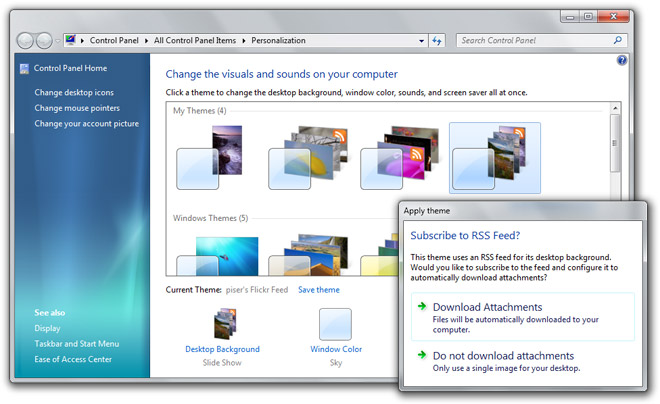
Part of the new theme file specifications in Windows 7 (and first uncovered by Rafael Rivera) is the ability to specify a RSS feed as the source of slideshow images. To put this to the test, I created three themes that source images from the RSS feeds of various Flickr users’ who make available the original high-resolution photos to the public. If you have a copy of Windows 7 handy, feel free to download these and play along.

piser's Flickr Feed
Photo credits: piser (Flickr)
daisybaxter's Flickr Feed
Photo credits: daisybaxter (Flickr)
Kounelli's Flickr Feed
Photo credits: Kounelli (Flickr)

The first time you double click to install the theme files you might find yourself enjoying nothing more than the default “beta fish” wallpaper, this is due to a number of bugs related to this feature. First of all, this feature utilizes the Windows RSS Platform which automatically refreshes and download feed enclosures in the background. Because this is a background process, it will take considerable time to download the high-resolution photos within the feed. But once the photos are downloaded, the theme does not automatically refresh to queue the new photos in the slideshow. A logout/login should be sufficient, but more simply you could open the theme control panel and toggle between two themes to force a manual refresh. I hope both issues are addressed in the final build for a more intuitive experience.

Another issue in the beta is the lack of means within the themes control panel to specify a feed URL, so you will have to resort to a text editor to get the job done. If you fancy some RSS feeds of your own, add the following snippet to your .theme file.

[Slideshow]
Interval=1800000
Shuffle=1
RssFeed=http://www.fabrikam.com/Feed

Images must be an enclosure item in the feed for the slideshow to work. Unfortunately this means many feeds (such as the Nasa Astronomy Picture of the Day) are ineligible.

Whilst I can’t credit this functionality to Microsoft (Mac OS X has had both slideshow and RSS support for some time), it’s a very powerful idea that’s still in its infancy stages. Realizing RSS feeds are not limited to just photos but perhaps dynamically generated images with information visualizations delivered fresh to your desktop every day sparks some interesting concepts. A desktop wallpaper that changes with the weather maybe?

Tip: If you would like to increase the frequency the feed is refreshed, by default it is every day, you can manage your Windows RSS subscriptions inside the “Feeds” panel of Internet Explorer. Right click on the appropriate Flickr feed and click settings to change the update interval.

Update: In the spirit of extending this functionality to more uses than just displaying photos, Jamie Thomson uses Windows Live FrameIt and some BBC feeds to generate a dynamic wallpaper with weather and news information. Even though it’s a bit ugly, it demonstrates a lot of potential.