All posts by Long Zheng

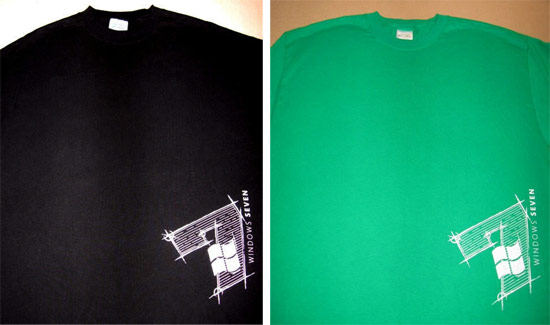
Windows 7 t-shirts on eBay: build not included

If you really like Windows 7, and I do mean really like, then you might be interested in these “Windows 7” t-shirts. These look different to the ones Microsoft staff were wearing at PDC08 which was just the Windows logo embossed – these however feature a stylized version of the internal Windows 7 logo screen printed on the side making it still somewhat authentic.

The green one is gently worn, both extra large (so that rules me out). Now bidding from $6.99 on eBay. The seller seems to be quite the merchandise collector.

Windows 7 to allow PC backups to network share

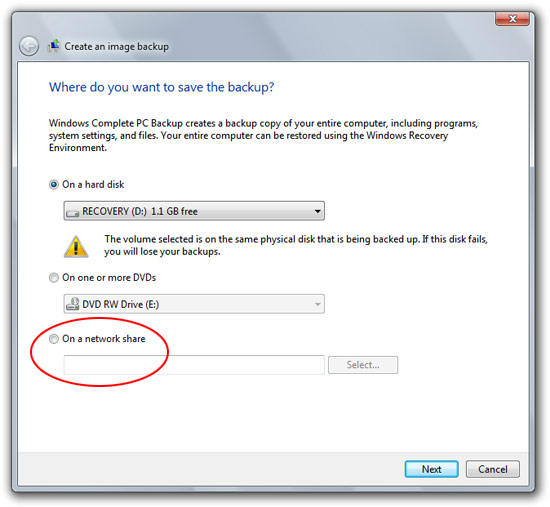
One of the most compelling features of the Windows Home Server is the automated image backup to the network share. However if you find a home server a little too much (or expensive) like I do, then you’d be glad to know Windows 7 will make the job of making “Windows Complete PC Backups” at least half as easy by allowing you to backup straight to a network share.

Whereas in Vista you could only do a complete backup to hard disk or DVDs (with files you could backup to network share), taking it one step further to the network share makes it much easier to do backups especially since you can’t backup to the same drive as the operating system. And I don’t think anyone will juggle 71 DVDs to backup their 500GB hard drive. I guess now’s as good a time as any to buy a NAS device.

Windows 7 to revolutionize PC troubleshooting

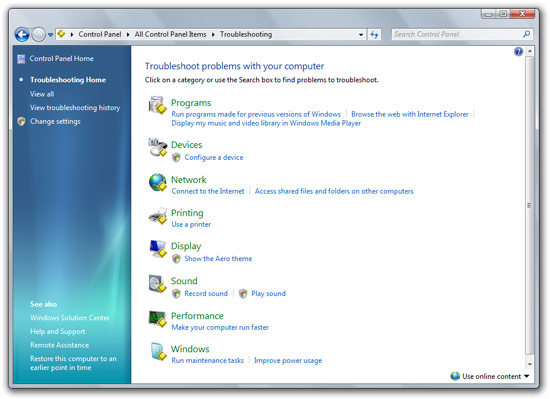
If the sound of helping family friends troubleshoot their computer problems makes you weep, then you have one more thing to look forward to in Windows 7. No, it won’t help novice users find that obscure “any” key, but Windows 7 will actually diagnose and fix many of its critical components as part of the new “Windows Troubleshooting” functionality.

For users who are currently using the 6801 build of Windows 7, you might have already noticed the “Troubleshooting” link in the control panel. However if you do try to click on any of the actions an error is prompted. But there’s another way. If you navigate to the “\Windows\diagnostics\system” directory, you’d find all of the troubleshooting files to manually initiate. Simply open a directory and double click on the file with the golden diamond.

Continue reading

Watch Steve Ballmer and co. live from Sydney tomorrow

The man, the legend and the loudest person I know, Steve Ballmer is coming down under tomorrow for a special Microsoft 3-hour keynote event. With him are Gianpaolo Carraro and Tim Sneath presenting both Windows Azure and Windows 7 and how they fit in the fluffy cloud computing vision. If you’re like me and don’t care much for Azure, definitely still tune in for Tim’s presentation about Windows 7 and Live Mesh.

You can find Steve and co. streamed live from the website at 3:30pm Australian Eastern Standard Time and other timezones around the world. Like usual, join early to hear a selection of upbeat Microsoft pre-keynote music.

Sandbox users with Windows 7 PC Safeguard

If you share your PC with many users, some of whom may be messy users with a habit of littering files and changing settings, or you might just be a privacy nut who doesn’t like to leave any traces behind, either way, a new and previously unannounced feature in Windows 7 called “PC Safeguard” might just be what you’re after.

First noticed by the enthusiasts at JCXP.net, “PC Safeguard”, as it is called in the Windows 7 user account settings, prevents specified standard user accounts (cannot be applied to admin accounts) from making permanent and unwanted changes by removing all changes and files saved after the user logs off.

Credit where credit is due, this feature is not fundamentally new. Since 2005, Microsoft has offered a tool previously known as the “Shared Computer Toolkit” now “Windows SteadyState” to both Windows XP and Vista users to do exactly this function and a little more. The interesting thing however is that the feature is now baked into Windows 7 – making it more widely known to users as well as simplifying the process drastically.

Continue reading

Tip: make your PDC 2008 (or any) USB hard drive a bootable Windows 7 install disk

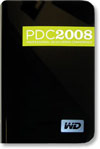
If you’re one of eight thousand people lucky enough to attend PDC 2008 last week and receive the ultra-cool 160GB portable hard drive with “the goods” then I have some extra good news for you, your hard drive can also become a bootable Windows 7 install disk. The best part is that you don’t even have to delete any of the existing files on the drive since there’s about 90GB free of the 160GB drive.
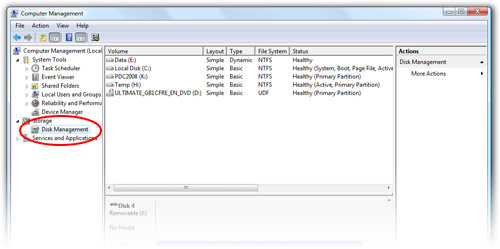
This is especially handy if you’re trying to install Windows 7 on a device without a DVD drive or if you don’t have any blank DVDs to burn the ISO on.

Of course this guide also works if you have an existing portable USB hard drive that has enough free space to partition and a copy of a Windows 7 ISO, which I’m sure you can get *wink*.

Step 1: Click open the Start Menu, right click on “Computer”, “Manage”. Open the “Disk Management” tool.

Continue reading