Category Archives: blog

Shake up your Windows 7 with Aero Shake

[flv:aeroshake.mp4 640 400]

One feature of the Windows 7 user experience that wasn’t demoed or even talked about last week at PDC 2008 is called “Aero Shake” – the same feature that led Rafael on an epic journey to unravel the secrets of build 6801 superbar. What Aero Shake does is allows you to shake your application windows furiously, to quickly minimize all other windows, at the same time experiencing a seizure in your hand.

It’s a pretty cool feature that I can see some practical use for it, but I think they need to work on the sensitivity so users don’t wear out their desk.

Why you should contribute to Win7 Taskforce

I don’t think I need to say much more, the picture pretty much speaks for itself. I want to thank “murdocdv” and everyone else who has submitted and voted on over one thousand submissions on Aero Taskforce so far.

If you have doubts on whether or not your feedback is heard, the Microsoft developers I met at PDC have all told me a resounding “yes”. On that note, I encourage everyone who has a copy of Windows 7 to head over to the Windows 7 Taskforce. Of course I’d also encourage everyone to use the built-in feedback tool as well.

Now that Windows 7 is officially revealed, over the next couple of days I’m going to try to get Microsoft developers more involved in this project – getting them to mark things as “going to fix”, “not going to fix” or “fixed”. Hopefully that will mean more immediate responses on your feedback.

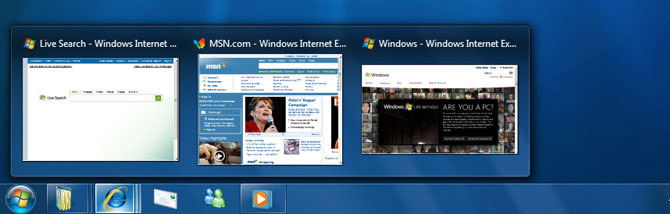
Tidbits about the new “superbar” taskbar

Ever since the Windows 7 demo with Steven Sinofsky and Julie-Larson Green at PDC 2008 where they showed off the new “superbar” taskbar, there’s been a lot of questions about how the new taskbar will work, customized or tweaked.

Unfortunately because the pre-beta build did not contain the new taskbar, it’s been hard to answer those questions. Fortunately I met up with Chaitanya Sareen today who took me through a better tour of the new taskbar on one of the demo machines with the new build. Here’s a few facts about the new taskbar.

DSC_0104

If you like text in your taskbar, labels can be enabled for taskbar items in the “taskbar properties” panel. Text however will only appear for active applications.

Continue reading

Improvements to fonts in Windows 7

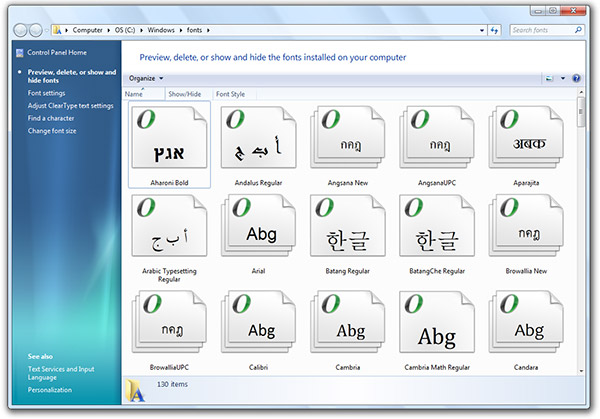
Besides Windows Classic, another popular question when a new version of Windows is announced is whether or not the “Add Fonts” dialog is there. In fact this is such a quirk it’s the first and one of the top problems on Aero Taskforce. Well, I’m both glad and proud to say that the “Add Fonts” dialog is no longer there. In addition, there are also a number of font management improvements in Windows 7 worth mentioning.

As you see from above, the fonts folder now actually previews font live from the thumbnails. Each font’s thumbnail has 3 characters of it’s alphabet displayed on the icon. This is a great way to quickly glance through the styles of fonts available without resorting to furiously scrolling through Photoshop.

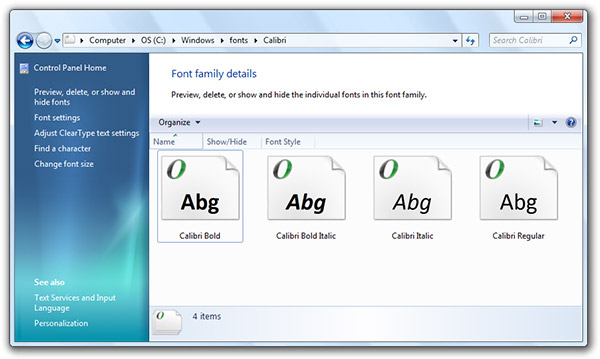
Fonts in a combined set will also no longer take up five different slots, instead, appearing as one font (for example Calibri) which you can double click to dive into.

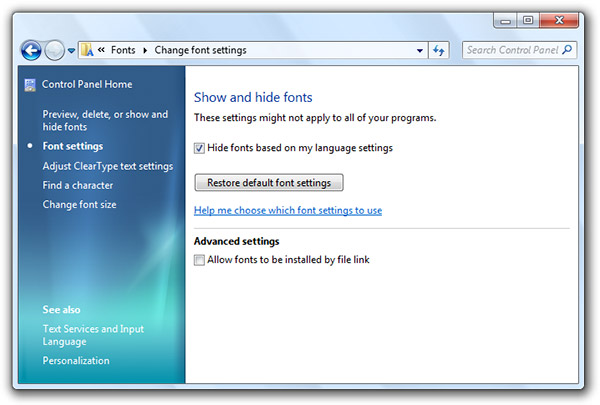
Windows 7 is also intelligent about toggling off and on fonts when required. By “hiding” fonts, they are still technically installed in your OS but not enabled to applications, this reduces the number of fonts to scroll through and also memory. First, Windows 7 will automatically hide fonts based on regional settings, but it will also allow you to show and hide them manually.

DSC_0086

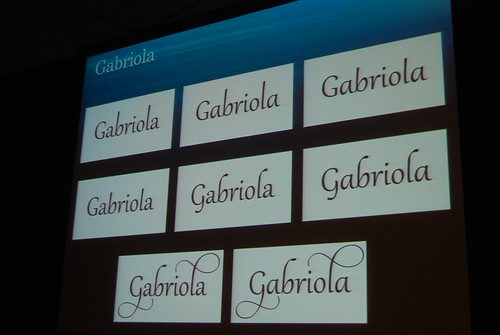
There’s also a new font in the pre-beta build of Windows 7. It’s called Gabriola and it’s a beautiful script font with support for a wide variety of advanced OpenType functionalities.

DSC_0119

DSC_0085

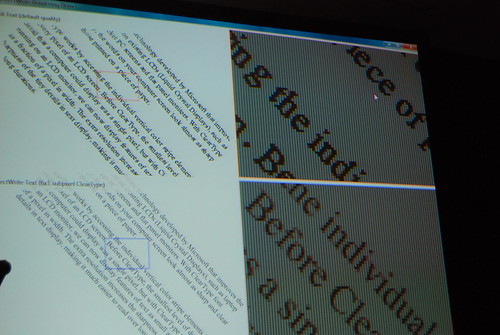
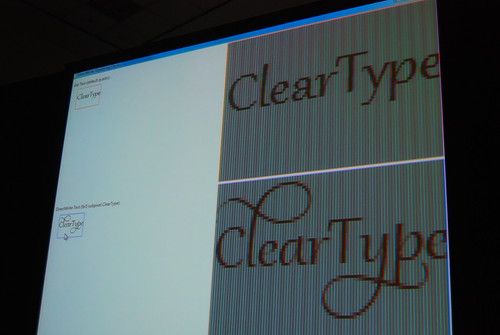
Technologically, with the introduction of DirectWrite there is also better support for text rendering in terms of non-pixel-bound fonts and YDirection antialiasing.
Windows 7 and light sensors: let there be light

DSC_0003

Once in a while, we all leave our lairs to use the laptop in alien environments commonly known as the “outdoors”. One of the forces of evil we face outdoors is of course the sun who wrecks havoc on our fragile LCD displays.

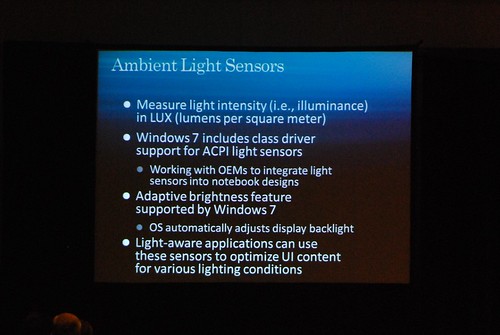
One of the new subsystems Windows 7 adds are sensors, creatively called “Windows Sensors”. Through this, Windows 7 will add native support for light sensors where it can help optimize the user experience based on the amount of ambient light in both the operating system and third-party applications.

Continue reading