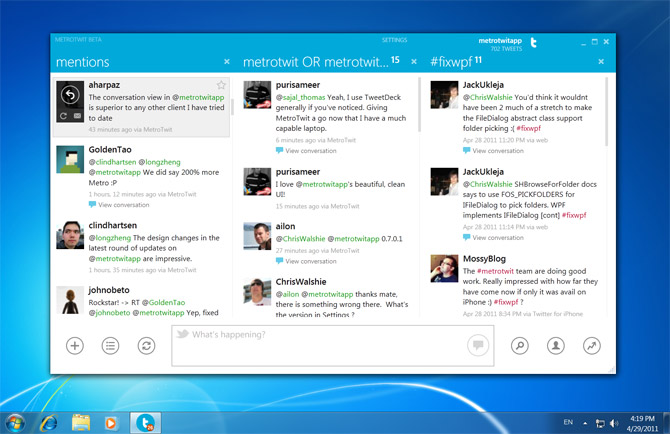
As a designer, it’s an awesome feeling to have your pixels created out of sweat and blood appreciated. Over the past 10 months, we’ve received a great amount of positive feedback on the MetroTwit user experience which we’ve been iteratively refining. I hate to toot my own horn but I think it’s pretty good right now.
In general, implementing Metro in a Windows application may sound simple on the surface, but is a lot more involved than just large text and solid colors. Windows Phone 7 offers a lot of inspiration, but not all of it is directly transferable. A mouse is not a finger and the screen is multitudes larger. As such, differences need to be accounted for.
I suspect due to the increasing popularity of Metro, a number of developers and designers have since contacted me about how they should implement it in their own desktop applications. Although the masters of Metro are at Redmond working on the next iteration, I do have a few pointers I’ve gathered from MetroTwit’s development that others may find useful.
Small round buttons should have larger rectangular hit areas
For icon-based buttons with a circular border, the mouse still be able to click it if not exactly in the circle. In MetroTwit, we wrap the button elements in a Grid or Canvas element with a transparent background to expand the hit area. The tweet “reply” button hitarea is 25% larger than the icon itself.
Use the hover state
One advantage of the mouse is it provides you with a hover state that’s not possible on capacitive touch screens. Remember to style the hover state of controls to provide feedback to users. The hover state can also be used to expose more information on-demand.
In MetroTwit, we also use the hover to hide contextual tweet buttons for a cleaner look.
More margin for touch, less margin for mouse
A touch UI requires larger margins to minimize the chance of a misclick, but the effect is not the same for a mouse. Excessive spacing and margins in a mouse-based UI would actually make the experience more difficult as users have to move the mouse over greater distances.
This is why in MetroTwit the buttons at the bottom panel do not evenly fill the white space, instead, loosely lumped together.
Users don’t “play” with desktop apps
It’s common for mobile users to just randomly swipe, tap and pinch a mobile app to discover functionality and content, but not so much on the desktop.
In practice, on WP7 the scrollbar is hidden by default and only shows while scrolling. Whilst the same effect is possible on the desktop, users would be frustrated by the lack of indication on what is scrollable and what position it is scrolled to, without randomly scrolling all over the UI which they don’t do.
Users will see your application much more frequently
Mobile apps are like cupcakes and desktop apps are like birthday cakes. Serving size matters.
Visual delights in the form of animations on the phone might be welcomed by the user, but multiplied by the frequency and length people use desktop applications, they can quickly become a nuisance. Having said that, animations are still necessary and useful to direct attention.
In MetroTwit, most animations complete in just 0.2 seconds, slow enough not to be an unrecognized stutter but quick enough to not leave users in limbo. We also have animations that complete in 0.1 seconds, but none over 0.4 seconds.
A Metro app in a non-Metro environment
Whilst you’re waist deep in Metro, it’s easy to forget the environment – Windows 7 and other applications, are currently not Metro. Balance Metro with the expectations of Windows. You don’t want users to feel like they’re using a whole different OS when inside your application.
Metro is open to interpretation
Last but not least, there is no official Metro guideline. Even the Microsoft published “UI Design and Interaction Guide for Windows Phone 7” loosely defines Metro with just five principles, the most obvious of which is “clean, light, open, and fast”. What that means of course is up to you.